Couldn’t Connect To Docker Daemon At Http Docker Local Host
 Andrew Davis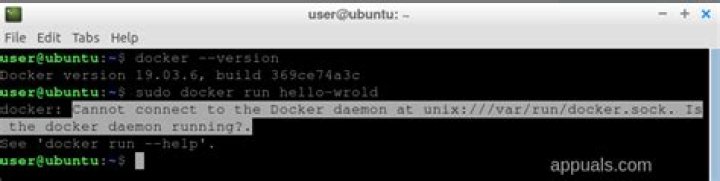
Introduction
If you encountered the error while running the docker compose build “Couldn’t connect to docker daemon at http docker local host” then here are the list of solutions that may help you to resolve the problem .
Solution#1 Check the status of the Docker daemon and engine Silky Terrier Dog Breed Playing Around
The first step is to verify the status of the daemon.
The command is: sudo service docker status
Then check the version of the docker:
The command is: sudo docker – – version
If the docker is not working, restart the service
The command is: sudo service docker restart
If the status of docker is running, then check the status of docker compose
The command is: sudo docker-compose –version
Finally run this command:
Sudo /usr/local/bin/docker-compose build
Solution#2 Shift Ownership to the Docker UNIX Socket
The error could be because of the ownership, There is high probability that Unix Socket file doesn’t have the correct ownership
The code is: sudo ls -la /var/run/docker.sock
The command to grant ownership is:
Sudo chown [user]: docker/var/run/docker.sock
User Privileges
It’s the duty of admin to check whether the user have the ownership privileges or nor , the admin should put users in docker user group so that the users could not faced problems related to permission or ownership .
The command to add user in group is: sudo usermod –aG docker ${user identity}
Solution#3 Ownership status of the used files
The error could also been caused if the docker could not access the files.
Step#1 Check the docker build
Through docker build user can get the detailed output of the potential errors.
The command is : docker build – – tag bulletinboard 1.0
If the docker build identified some errors than there are several ways through which issue can be resolved
- Remove the files that cause error
- .dockerignore command you can ignore the error files
- The last way is to access through sudo command . The command to access through sudo is : sudo chown [user]:docker /your file/location
Solution #4 Add environment variables
The code to add the environment variables are
docker-machine env
eval “$(docker-machine env default)”
Conclusion
In the end I have to say that I used these methods when I stuck to similar problem but it doesn’t mean that it work for you there are other methods through which you can use to resolve your problem.




