How To Connect Ezcast To Wi-Fi
 Andrew Davis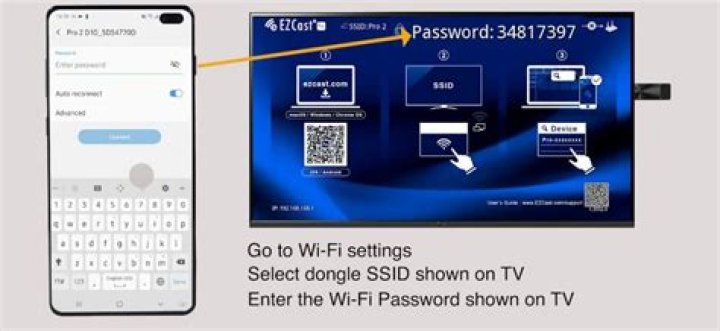
Ezcast is the device that’s used to share the screen of multiple devices to the plasma in the library via a Wi-Fi connection. The Ezcast supports IOS 7 or above devices, Android 4.4 or above. It requires 40MB minimum free space for installation.
Silky Terrier Dog Breed Playing Aro... Silky Terrier Dog Breed Playing AroundIn this article, we will discuss how you can connect Ezcast to a Wi-Fi network.
Steps to Apply
On the mobile device go to settings
Then select the Wi-Fi settings
Connect to GCC Wi-Fi
Download the App (its available for windows, android, and IOS)
On your device, go to [Wi-Fi Settings] to connect the device to Ezcast SSID (i.e. Ezcast-xxxxxxxx) as shown on the plasma
At Ezcast App, click [Find device] to connect the Ezcast model
Now the last step is to connect Ezcast, if you have an android device then used its app to mirror the screen
If you are an IOS user then you can use the Airplay method




